 Daniel P Gross
My LLM-assisted journaling workflow
Journaling (writing in a private diary) has become a frequent and useful habit of mine. Over time, I’ve been experimenting with ways to bring the newest tools from my professional work into that practice, and I eventually landed on the workflow below. It’s made journaling significantly more valuable for me — read on for why.
Before the workflow details, it’s worth asking: why journal at all?
Why journal?
For me, journaling is a tool for making progress. It’s a way to take the raw ideas and feelings bouncing around in my head and refine them into something clearer and more coherent.
I find myself regularly surprised how the simple practice of transforming thoughts into sentences triggers new perspectives and insights. I’m no brain expert, but I imagine there must be one part of the brain that generates thoughts and a different one that verbalizes them, and it’s through this activation of different mental processes that journaling yields new insights.
Journaling is also an excellent tool for noticing what’s changing in my life. Sounds silly, right? But making regular time to notice, process, and reflect on changes around me turns out to be surprisingly powerful for keeping emotional and mental balance.
Optimizing for low friction
When people think “journaling”, they often picture a notebook and a pen. I’ve done that in the past, but my biggest problem was always friction: I handwrite a lot slower than I think, and the handwriting itself felt like an impediment to getting my thoughts out. Typing on my phone or computer was somewhat faster, but it was far too easy to get distracted by notifications, apps, etc.
The biggest step forward was dictation. It feels strange to write out a stream of consciousness in incomplete and rambling sentences — there’s a sense of needing to structure things and make them coherent (at least for me). But speaking those same words feels normal because we don’t expect speech to be perfectly planned and structured. Dictation lets me be verbose and unstructured in the moment, so I can focus on just getting my thoughts out, rather than editing and structuring them.
With all its benefits, dictation does have the caveat of requiring a quiet, private space to speak freely.
The workflow (Apple Notes + MacWhisper + local LLM)
This workflow is very Apple-centric because I’m deep in that ecosystem.
Step 1: dictate into Apple Notes
I use the Apple Notes app because it’s always there (iPhone + Mac) and sync is automatic. I don’t want to think about “where my journal entries live” or whether today’s entry made it to the right device.
Here’s how I start an entry:
- Create a new note in a dedicated journaling folder
- Start an audio recording inside the note
- Speak stream-of-consciousness style
At this stage, the goal is raw material, not clarity. It’s totally fine if it’s meandering, repetitive, and peppered with filler words and pauses.
Apple Notes also does on-device transcription. It’s usually decent, and it’s immediately available, which makes it a nice first-pass transcript.
Step 2: run the recording through MacWhisper
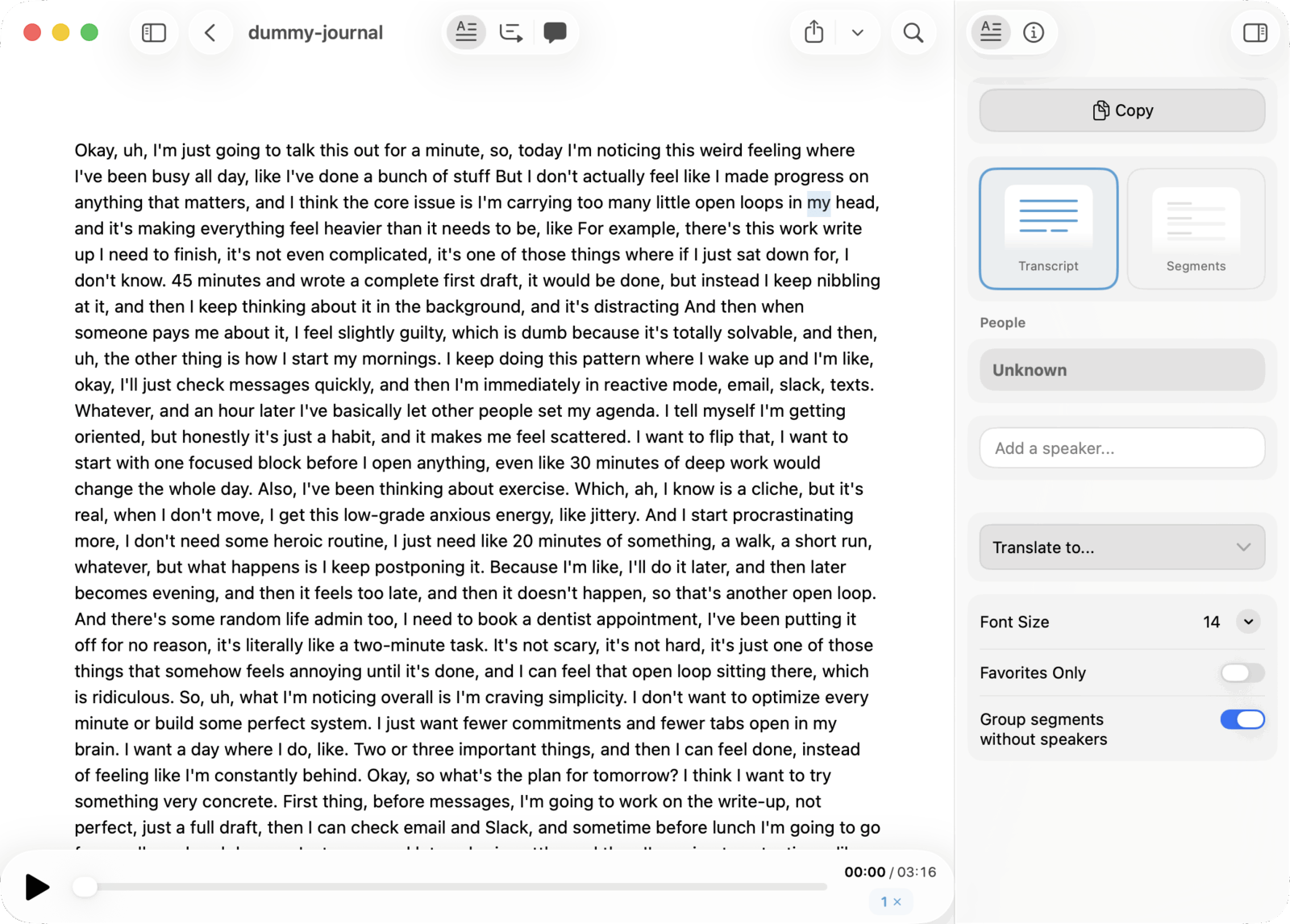
Next I drag the audio file into MacWhisper, a macOS app for transcribing audio using state-of-the-art models like OpenAI Whisper and Nvidia Parakeet.
In this workflow, I use it for its more accurate transcription than Apple Notes (especially with uncommon or domain-specific words) and its integrated one-click summary feature that saves me manually copy/pasting the transcript and corresponding prompt into LM Studio (see next section).
Step 3: summarize with a custom prompt (using a local model)
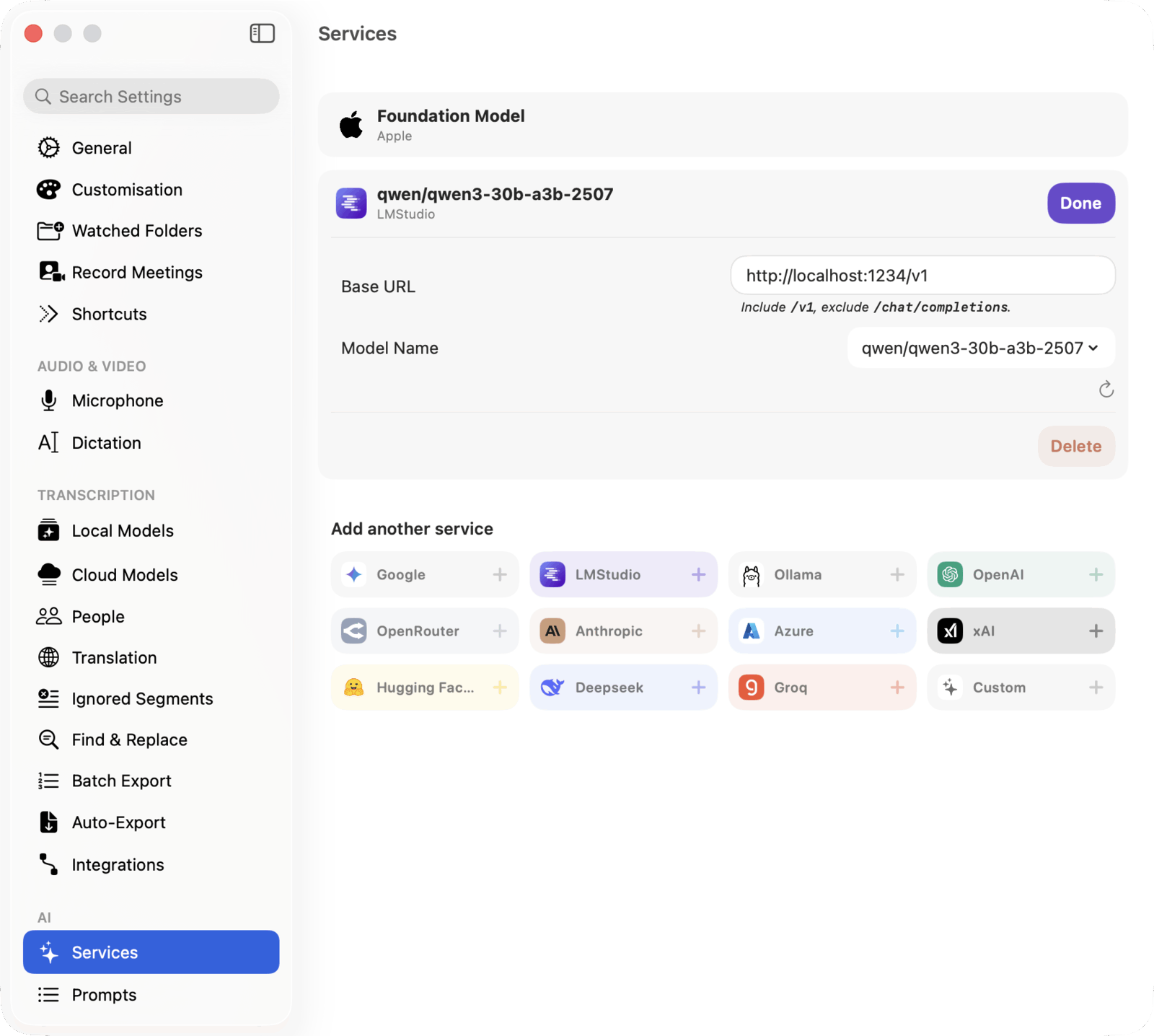
MacWhisper can generate an AI summary of the transcript. You can configure:
- the prompt
- which LLM to use
In my setup, I run LM Studio locally, load a Qwen mixture-of-experts model, expose it as a local network service, and then point MacWhisper at it. The choice of model is key: I settled on qwen/qwen3-30b-a3b-2507 after experimenting with a few others because it runs smoothly on my M1 MacBook Pro, shows good understanding of typical journal content, and usually generates a sensible (even insightful) summary.
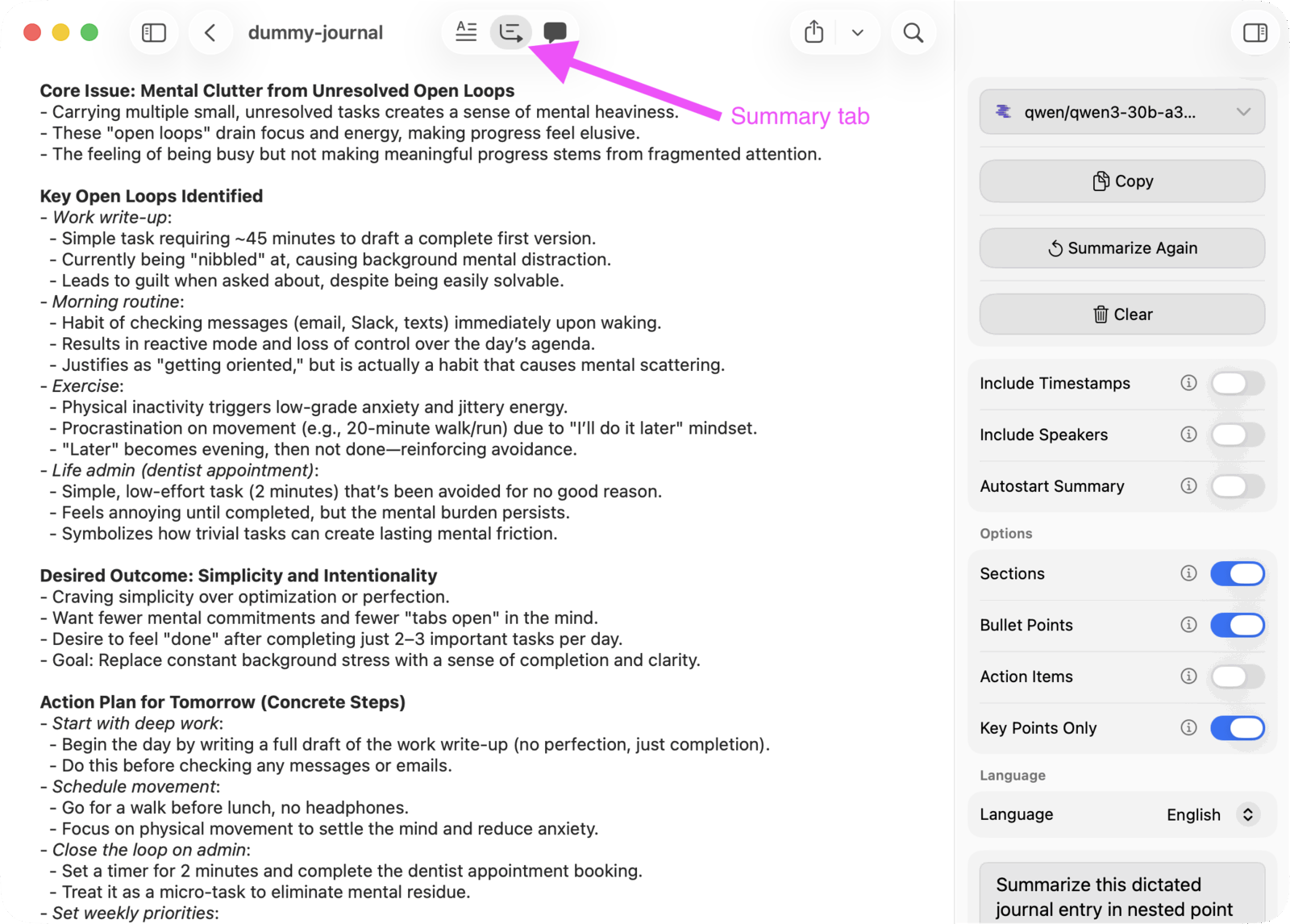
This is the part that feels magical: in under a minute, I get a structured, concise version of what I just said.
The summary step is doing two important things:
- Condensing: remove fluff, repetition, “ums”, and everything that isn’t essential
- Structuring: turn a wall of transcript into bullet points I can scan and reflect on
It’s much easier to think about what I said when it’s in a tight outline; often the distilled outline format is itself enough to trigger some new insights when I first read it. And it’s far more useful when I’m looking back in the future, because I don’t want to re-read a giant transcript to remember what was going on.
Here’s the prompt I use:
Summarize this dictated journal entry in nested point form format. Find the most salient themes in the content and use those as top-level points. Then fill out sub-points, sub-sub points, etc. up to 3 levels of nesting. Each point should be concise and omit filler words.
Step 4: copy the summary back into the original note
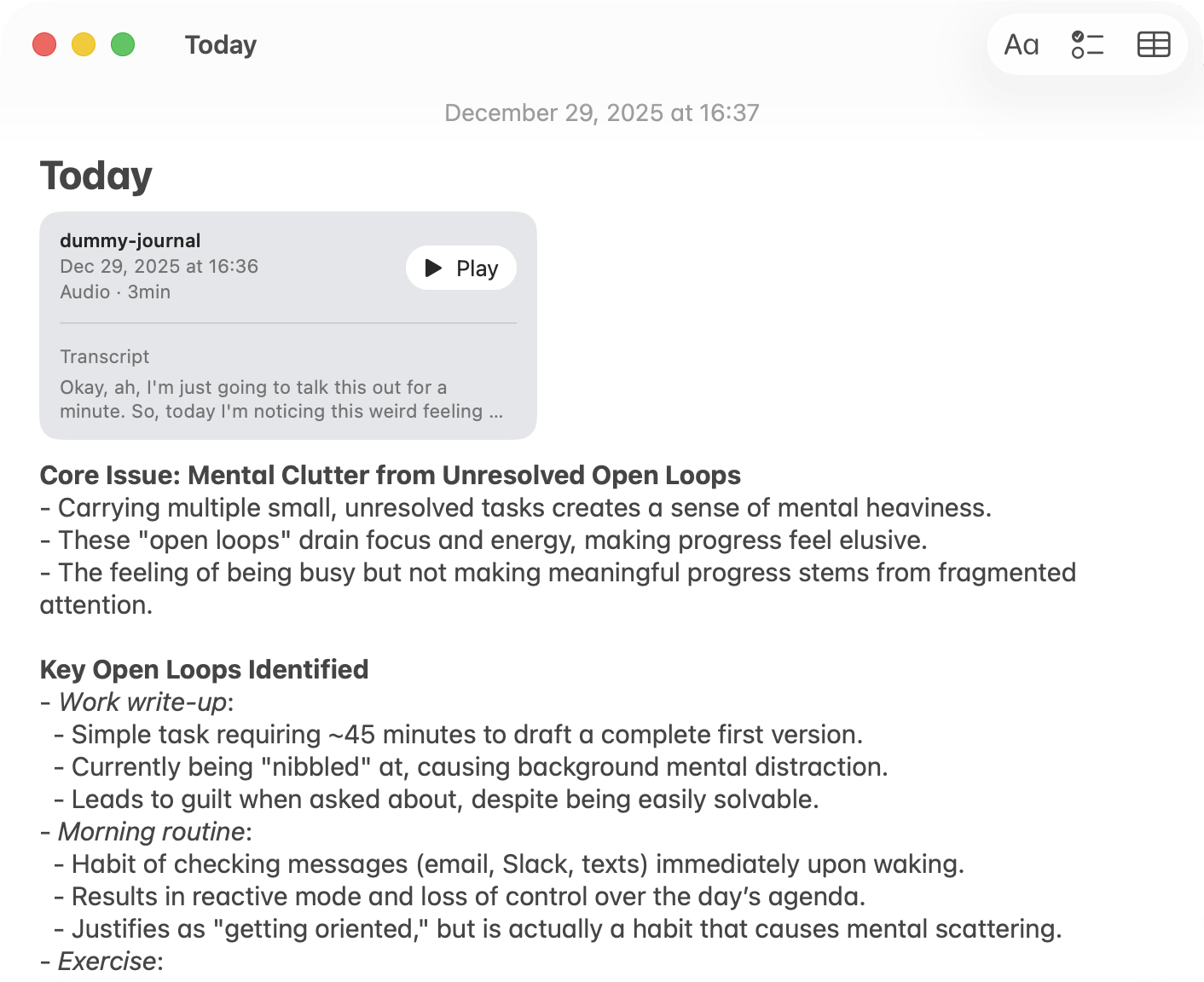
Finally, I copy the generated summary and paste it into the top of the original Apple Notes note (the one that contains the recording).
That’s it. The raw recording is there if I ever want it, but the summary is what I’ll usually refer back to later.
Privacy and tradeoffs
The obvious question with “AI journaling” is privacy. I trust Apple with data storage, but keep the rest to local tools only:
- the note + audio live in Apple Notes (synced via iCloud with Advanced Data Protection)
- transcription and summarization happen on my Mac
- the LLM is served locally via LM Studio (no external API calls)
This isn’t “perfect security”, but it’s a set of tradeoffs I’m comfortable with: high usefulness, low friction, and no raw journal transcript being shipped to a third-party LLM service.